Appearance
Create Custom Export Presets
The Unreal to Blender Exporter comes with predefined export configurations for different texture resolutions. You can create custom presets to export other types of assets or with specific settings.
How Presets Work
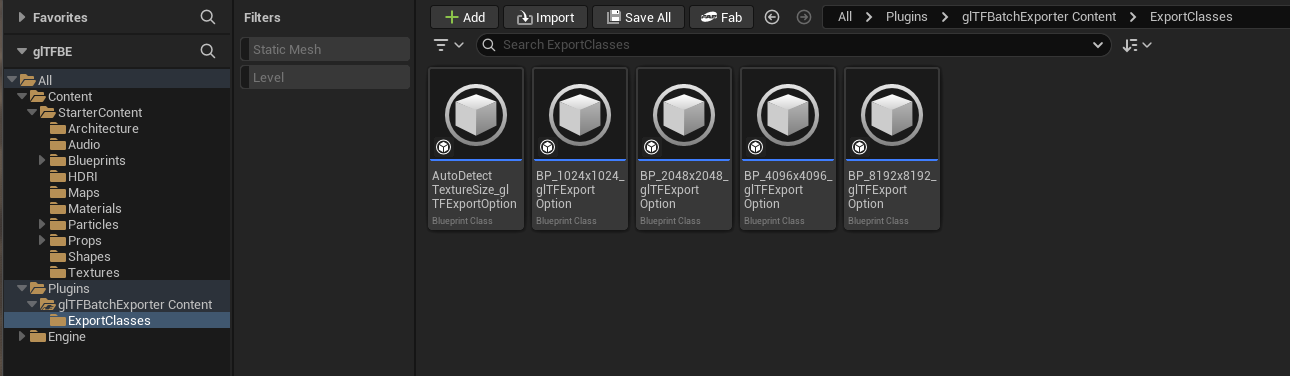
Export presets are Blueprint assets that inherit from UBlueprintGLTFExportOptions. The plugin automatically discovers all presets located in the Content/ExportClasses folder within the plugin directory.
Creating a Custom Preset
Step 1: Create the Blueprint Class
- In the Content Browser, navigate to
Plugins/glTFBatchExporter Content/ExportClasses - Right-click and select Blueprint Class
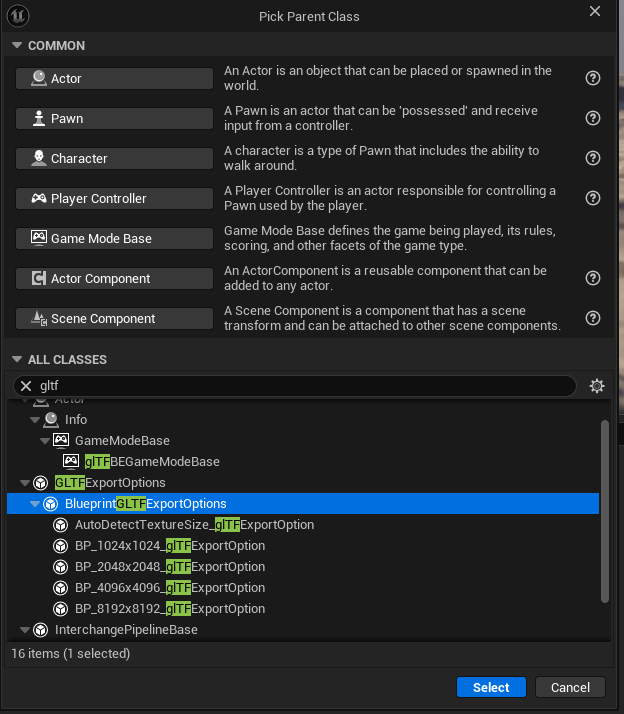
- In the parent class picker, search for
BlueprintGLTFExportOptions - Select it and click Select
- Name your new preset (e.g.,
BP_MyCustomPreset_glTFExportOption)
Naming Convention
The plugin strips _glTFExportOption from the preset name in the dropdown. So BP_MyPreset_glTFExportOption will appear as "BP_MyPreset" in the UI.
Step 2: Configure Export Options
- Double-click your new preset to open the Blueprint Editor
- In the Class Defaults panel, you'll see all available export options
- Configure the settings as needed
Available Options
The preset inherits from UGLTFExportOptions, which includes:
Texture Settings
- Texture Image Format: PNG or JPEG
- Texture Image Quality: Compression quality (0-100)
- Default Material Bake Size: Resolution for baked materials
Mesh Settings
- Export Vertex Colors: Include vertex color data
- Export Morph Targets: Include blend shapes/morph targets
- Export Vertex Skin Weights: Include skinning data for skeletal meshes
Material Settings
- Export Material Proxies: Use glTF proxy materials when available
- Bake Material Inputs: Bake material properties to textures
Level Sequence Settings
- Export Level Sequences: Export animation data
- Export Animation Sequences: Include animation assets
Step 3: Save and Use
- Save and compile your Blueprint
- Close and reopen the Unreal to Blender Exporter window
- Your new preset will appear in the Export Preset dropdown
Example: High-Quality Export Preset
Here's an example configuration for a high-quality export:
| Setting | Value |
|---|---|
| Texture Image Format | PNG |
| Texture Image Quality | 100 |
| Default Material Bake Size | 4096 |
| Export Vertex Colors | True |
| Export Morph Targets | True |
Example: Web-Optimized Preset
For web deployment with smaller file sizes:
| Setting | Value |
|---|---|
| Texture Image Format | JPEG |
| Texture Image Quality | 75 |
| Default Material Bake Size | 1024 |
| Export Vertex Colors | False |
| Export Morph Targets | False |
Troubleshooting
Preset Not Appearing
- Ensure the preset is saved in the
Content/ExportClassesfolder - Verify the preset inherits from
BlueprintGLTFExportOptions - Try closing and reopening the export window
Settings Not Applied
- Make sure you're editing the Class Defaults, not instance properties
- Compile the Blueprint after making changes
- Restart the Unreal Editor if issues persist
See Also
- Export Options Reference - All available export settings
- Getting Started - Basic usage guide